Install My Deep Ocean Amber Them from the Visual Studio Marketplace here.
I’ve been switching between dark themes for years and kept landing on the same two for different reasons — Cobalt2 by Wes Bos for the deep blue workbench, and One Dark Pro by Binaryify for the syntax colors. Eventually I stopped switching and just built the combination as a single theme.
TL;DR – A dark VS Code theme. Deep blue backgrounds (#122738 / #193549 / #1f4662), amber accents (#ffc600), and One Dark Pro syntax colors.
Install it, set workbench.colorTheme to Deep Ocean Amber, and you’re done. The rest of this post covers the settings I tuned it against, how to swap out the syntax colors without losing the UI.
The Palette
Three blues and one amber do most of the work:| Color | Hex | Where it’s used |
|---|---|---|
| Deepest blue | #122738 | Sidebar, panels, the surfaces behind the editor |
| Editor blue | #193549 | The editor background itself |
| Lifted blue | #1f4662 | Selections, hover states, active lines |
| Amber | #ffc600 | Accents — cursor, active borders, highlights |
The Settings
The theme only sets colors — it doesn’t touch your fonts, spacing or cursor. But it was designed while looking at a specific setup, so here’s what I had insettings.json the whole time I was building it:{
"workbench.colorTheme": "Deep Ocean Amber",
"editor.fontFamily": "'FiraCode Nerd Font', Consolas, monospace",
"editor.fontLigatures": true,
"editor.fontSize": 16,
"editor.fontWeight": "400",
"editor.lineHeight": 25,
"editor.letterSpacing": 0.3,
"editor.cursorStyle": "line",
"editor.cursorWidth": 2,
"editor.cursorBlinking": "smooth",
"terminal.integrated.fontFamily": "'FiraCode Nerd Font Mono'",
"terminal.integrated.fontSize": 16
}Keeping the UI, Changing the Syntax Colors
A theme’s workbench colors and its syntax highlighting are two independent things, and VS Code lets you override one without touching the other. So if you like the deep blue UI but want your code colored differently, add this tosettings.json:
"editor.tokenColorCustomizations": {
"[Deep Ocean Amber]": {
"comments": "#7f848e",
"strings": "#98c379",
"keywords": "#c678dd",
"numbers": "#d19a66",
"types": "#e5c07b",
"functions": "#61afef",
"variables": "#e06c75"
}
}
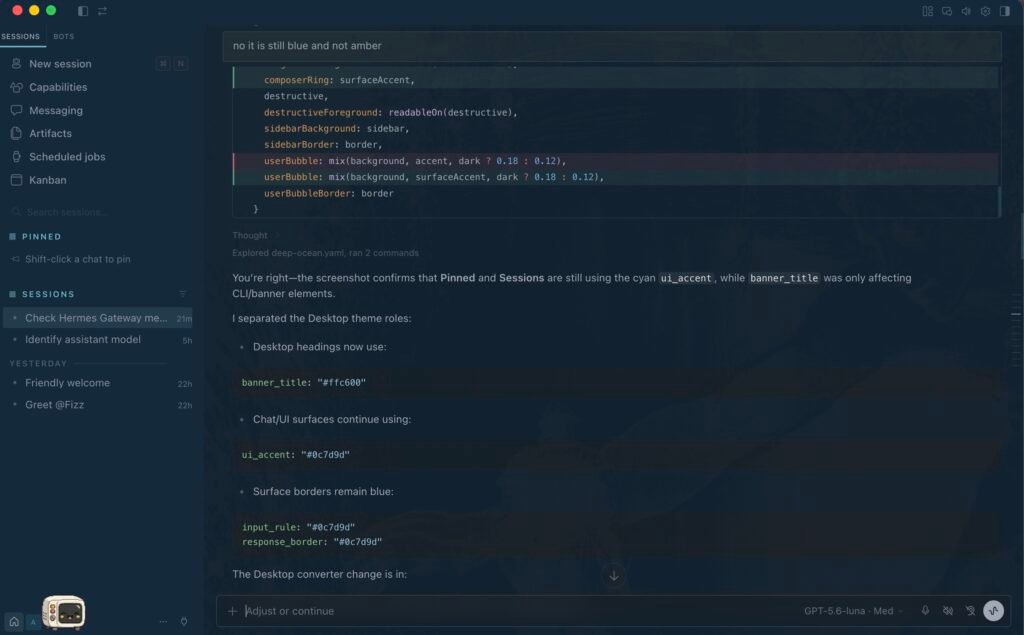
Hermes Desktop
I also ported the palette to Hermes Desktop, so a terminal session sitting next to the editor doesn’t look like it came from a different machine.
The hermes/deep-ocean.yaml maps the same blues and amber onto Hermes’ own surface names — banner, status bar, prompt, TUI panels. To apply find it the Visual Studio Code Themes market place under Appearance in the Hermes Desktop app.